
If you want to turn off google password manager, you can do it from Chrome or your Google Account settings without deleting every saved login immediately. The setting is useful when Chrome keeps asking to save passwords, fills the wrong account, or conflicts with a dedicated password manager such as 1Password, Bitwarden, or Proton Pass. The safest approach is to review and export your saved passwords first, then disable saving and automatic sign-in.
Google Password Manager is built into Chrome and Android. It stores usernames and passwords in your Google Account, where they can sync across devices. That convenience is helpful, but it also means a lost Google account, reused password, or unlocked device can expose more than one login. Start with the risk you actually have: decide whether you are changing tools, limiting syncing, or simply tired of save prompts.
Before you disable Google Password Manager
Before you turn off google password manager, check what is already stored. On a computer, open Chrome, select the three-dot menu, choose Passwords and autofill, and open Google Password Manager. On Android, open Chrome, select the menu, tap Settings, and choose Google Password Manager. You can also visit passwords.google.com after signing in.
Look for important accounts such as email, banking, health portals, shopping sites, and social media. Confirm that you know the current password or have a working recovery method. If you are moving to another password manager, install the new app or browser extension first. Many services let you import a CSV file, although that file is unencrypted while it exists on your computer, so delete it immediately after importing and empty the recycle bin.
This is also a good time to remove passwords you no longer use. Delete old school, work, shopping, and trial accounts rather than carrying them into a new vault. For important accounts, turn on two-factor authentication before making changes. An authenticator app or passkey is generally stronger than receiving a one-time code by text, though either option is better than relying on a password alone.

How to turn off Google Password Manager in Chrome
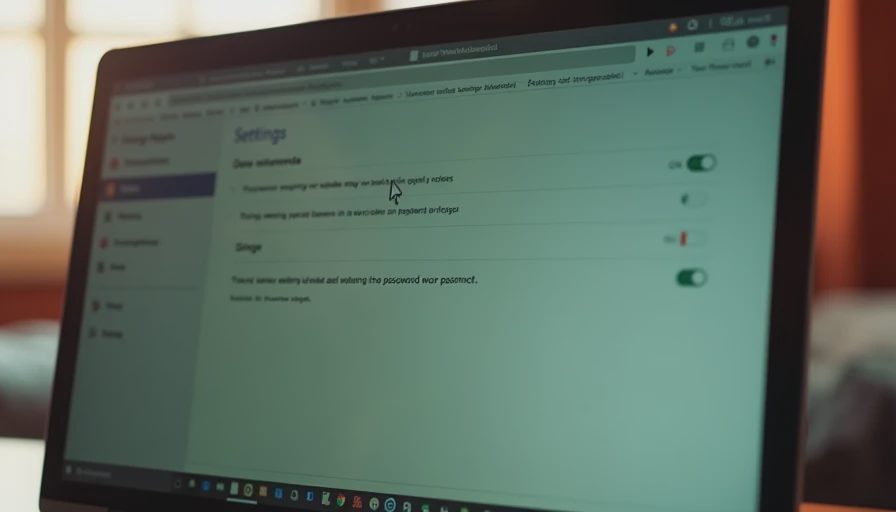
To turn off google password manager on a Windows PC, Mac, or Chromebook, open Chrome and select the three-dot menu in the upper-right corner. Choose Settings, then Passwords and autofill, followed by Google Password Manager. Open Settings in the Password Manager screen and find the option labeled Offer to save passwords. Switch it off.
If you do not want Chrome signing you into websites automatically, switch off Auto sign-in as well. These are separate controls. Turning off password saving does not necessarily stop Chrome from using passwords already stored in your account, and disabling Auto sign-in does not remove existing entries.
Chrome’s menu names can shift slightly after an update. If you cannot find the controls, type password manager into the Settings search box. You can also open the address chrome://password-manager/settings in Chrome. Avoid clicking password-setting links from random popups or emails; use the browser menu or type the address yourself.
On Android, open Chrome, tap the three-dot menu, choose Settings, and tap Google Password Manager. Tap the gear icon, then turn off Offer to save passwords. Turn off Auto sign-in if you want Chrome to stop entering saved credentials automatically. Android manufacturers sometimes place Google settings in different menu locations, but the Chrome Password Manager screen remains the relevant control.
On an iPhone or iPad, open Chrome, tap the three-dot menu, select Password Manager, and open its settings. Disable Offer to save passwords and Auto sign-in as needed. If Safari is your main browser, also review Settings on the iPhone, then Passwords. Safari may be storing credentials separately in Apple’s iCloud Keychain, so changing Chrome does not automatically change Safari.
What happens after you turn it off
When you turn off google password manager, Chrome should stop offering to save new passwords. Existing passwords usually remain in your Google Account unless you delete them manually. That distinction matters. Disabling the feature changes future behavior; it is not the same as clearing your password vault.
You might still see saved credentials suggested on a login page. This can happen because the password remains stored, because another browser is filling it, or because a dedicated password manager extension is active. Check Chrome extensions and your device’s password settings before assuming the change failed.
If Chrome continues saving passwords, confirm you changed the profile you actually use. A work profile, family profile, guest profile, or second Google account can have separate settings. Sync can also make the same change appear on multiple devices. Shared computers deserve extra attention: sign out of Chrome, remove the profile if appropriate, and never leave a password export in the Downloads folder.
Safer alternatives for storing passwords
Turning off Google’s tool is most useful when you replace it with a clear plan. A dedicated password manager such as Bitwarden, 1Password, Dashlane, or Proton Pass can generate long, unique passwords and protect them in an encrypted vault. Their features and prices differ, so compare device support, recovery options, emergency access, and family sharing rather than choosing only by brand recognition.
A good replacement should work on every device you use. Test it with your primary email account, bank, shopping account, and phone before moving everything. Install only the official app or browser extension from the company’s website or your device’s app store. Fake password-manager extensions and lookalike apps are real risks because they can request access to pages and login fields.
If you prefer Apple’s built-in system, iCloud Keychain can handle passwords and passkeys across Apple devices. Microsoft users may use Microsoft Edge’s password features, while Firefox offers its own password storage. Keeping passwords in one trusted system is usually easier to manage than spreading them across notes, browser profiles, screenshots, and text messages.
Never replace a password manager with a spreadsheet saved on the desktop. If you must keep a temporary export during migration, encrypt it, store it briefly, and delete it securely afterward. Use a strong, unique master password and protect the account with multifactor authentication.
A simple cleanup checklist
After you turn off google password manager, open your new password tool and create a login for your email account first. Email is the reset key for many other services, so it deserves a unique password and multifactor authentication. Next, update financial accounts, your mobile carrier, cloud storage, and shopping accounts. Work through the list over several short sessions instead of rushing through dozens of changes in one sitting.
Watch for duplicate entries. A password manager can show several records for the same website, especially when a company uses separate login pages for its app, rewards program, and payment service. Keep the current record, remove stale ones, and verify the domain before saving a new login. A genuine bank domain should not be replaced by a misspelled address or an unexpected country domain.
Review account activity after the transition. Look for unfamiliar devices, password-reset messages, new forwarding rules, or security alerts. If anything looks wrong, change the password from the official website, sign out other sessions, and contact the company through a verified support channel. Trust matters before the click.
Common questions about disabling it
Will disabling Google Password Manager delete my passwords? Usually, no. Turning off password saving and Auto sign-in changes Chrome’s behavior, while deleting entries is a separate action. Confirm the difference before clearing anything.
Can I turn off google password manager for only one device? Yes. Chrome settings can be different for separate devices and profiles, although sync can carry some account data between them. Check each profile if a household shares a computer.
Should I delete all saved passwords? Not automatically. Export or migrate them first, then delete records you no longer need. Keep a secure recovery plan for important accounts, especially email and banking.
The best setup is the one you can maintain. If Chrome’s built-in storage no longer fits your household, disable saving, move credentials into one reputable manager, activate multifactor authentication, and remove abandoned accounts. Safe enough starts with clear choices.