
Home Wi-Fi is the quiet foundation of almost everything else in a household’s digital life. Phones, laptops, tablets, smart speakers, televisions, and work devices all pass through it. Improving its security does not require advanced networking knowledge or a full weekend of configuration. A short list of focused changes closes the most common gaps and can be finished in a single focused session. This article walks through those practical steps.
I have helped many people after problems that began on an open or poorly configured home network—unauthorized devices, repeated disconnection issues, or malware that moved more easily between machines. In most cases the network had been left on default settings for years. A few deliberate adjustments would have raised the difficulty for casual misuse without making the network harder for the family to use.
Change the Default Administrator Password First
Every router ships with a default administrator username and password. Those defaults are widely known and still appear on far too many home networks. The single highest-leverage step is to log into the router’s admin page and set a new, strong password that is not used anywhere else.
Access is usually available by typing the router’s gateway address into a browser (often something like 192.168.1.1 or 192.168.0.1). The exact address and default credentials are printed on a sticker on the router itself. Once inside, locate the administration or system password section, set a long unique password, and store it in a safe place. This change alone prevents the most basic remote and local takeover attempts that rely on unchanged factory credentials.

Update the Router Firmware
Router manufacturers release firmware updates that fix security vulnerabilities and improve stability. Many home routers never receive these updates after the initial setup. Check for an update in the same admin interface used for the password change. Apply it if one is available, then confirm the router reboots cleanly and that devices can reconnect.
Some newer routers support automatic firmware updates. Enabling that option, when it exists and is reliable, removes the need to remember future manual checks. For older hardware that no longer receives updates, consider eventual replacement; unsupported routers accumulate known weaknesses over time.
Use Strong Wi-Fi Encryption and a Solid Network Password
Confirm that the network is using WPA3 if the router and all important devices support it, or at least WPA2-AES. Avoid older options such as WEP or mixed modes that include weaker protocols. Set a long Wi-Fi password that is different from the administrator password. A passphrase of random words or a long generated string is far more resistant to guessing than a short complex password that people are tempted to simplify.
Guest networks, when available, provide a useful separation. Place visitors and less-trusted devices on the guest network so they cannot directly reach the main household devices or shared folders. The main network password can then stay known only to regular household members.
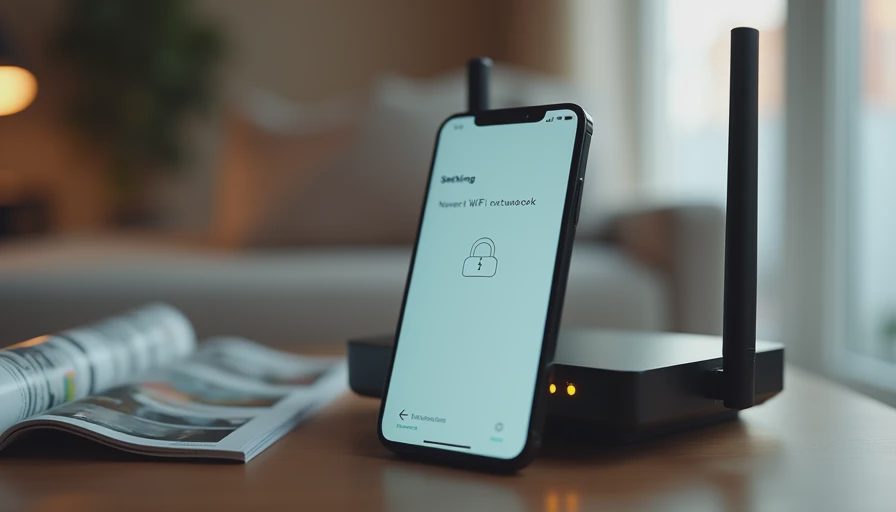
Turn Off Features You Do Not Need
Several common router features increase the attack surface while providing little daily value for most households:
Remote administration (access from outside the home network) is rarely necessary and should be disabled unless you have a specific, temporary need.
WPS (Wi-Fi Protected Setup) simplifies device joining but has known weaknesses; turning it off removes an easier entry path.
UPnP can be convenient for some games and devices yet has been abused in the past; disable it if you do not actively need it.
Each of these changes is usually a single toggle inside the admin interface. Disabling what you do not use reduces the number of ways an unwanted connection can be established.
Review Connected Devices Occasionally
Most modern routers show a list of currently connected devices. Once or twice a year, open that list and look for unfamiliar names or devices. If something unknown appears, change the Wi-Fi password; all legitimate devices will need to rejoin with the new password, and the unknown device will be left out.
This quick review also helps identify old phones, tablets, or smart devices that are still connected long after they left the household. Removing or isolating them keeps the network cleaner.
Position and Basic Physical Habits
Place the router in a reasonably central location away from exterior walls when possible. This improves coverage for the household and slightly reduces the strength of the signal outside the home. Avoid leaving the admin interface open on a computer longer than needed. Log out after making changes.
If the router has a physical reset button, understand that pressing it returns the device to factory defaults—including the original administrator password. After any reset, the password and firmware steps should be repeated.
A Realistic One-Session Checklist
For most households the entire process fits into a single focused session:
Log into the router with current credentials.
Change the administrator password and record it securely.
Check for and apply any firmware update.
Confirm WPA2 or WPA3 encryption and set a strong Wi-Fi password.
Enable a guest network if available and desired.
Disable remote administration and WPS.
Review the list of connected devices.
Log out of the admin interface.
After these steps, reconnect household devices with the new Wi-Fi password and confirm that everyday use still feels normal. The network is now meaningfully harder to misuse while remaining convenient for the people who live there.
Safe enough starts with clear choices. Home Wi-Fi security does not require advanced configuration or constant monitoring. Changing default credentials, keeping firmware current, using strong encryption, disabling unnecessary features, and glancing at connected devices occasionally close the most common gaps. These steps fit into ordinary life instead of becoming a recurring technical project.
Related articles in the Safer Setup section cover Windows laptop defaults and browser hardening. The same practical standard applies throughout: focused changes that ordinary households can complete and then largely forget while still gaining lasting benefit.