Learning how to secure wifi is one of the simplest ways to reduce everyday online risk. Your home network connects phones, laptops, TVs, cameras, printers, game consoles, and smart speakers, so one weak setting can affect several devices. The good news is that you do not need an information technology background or expensive equipment. A few careful changes to your router can make your network safer without making it frustrating to use.
Start with the risk you actually have. Most households are not being personally targeted by an elite hacker. More common problems include a neighbor guessing an easy password, an old router using outdated protection, or a smart device exposing more information than expected. The steps below focus on those practical risks.
Change the router admin password first
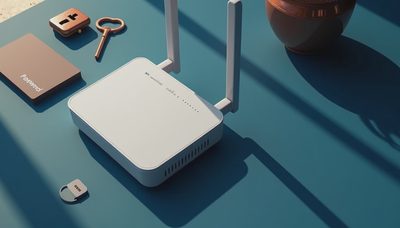
Your Wi-Fi password lets devices join the network, but the router administrator password controls the router itself. These are separate credentials, and both deserve attention. If the router still uses a default login printed on a label or listed in its manual, change it immediately. Default credentials are easy to find online and should not remain active.
Open the router's management page or mobile app. Common addresses include 192.168.0.1 and 192.168.1.1, although your manufacturer may use another address. Look for Administration, System, Settings, or Account. Create a long, unique administrator password that you do not use for email, banking, shopping, or any other account. A password manager such as 1Password, Bitwarden, or Proton Pass can generate and store it.
Do not share this administrator password with visitors who only need internet access. If someone needs help connecting a device, give them the Wi-Fi credentials instead. This simple separation reduces the chance that a casual user changes settings or disables a security feature.
Use modern Wi-Fi encryption and a strong network password
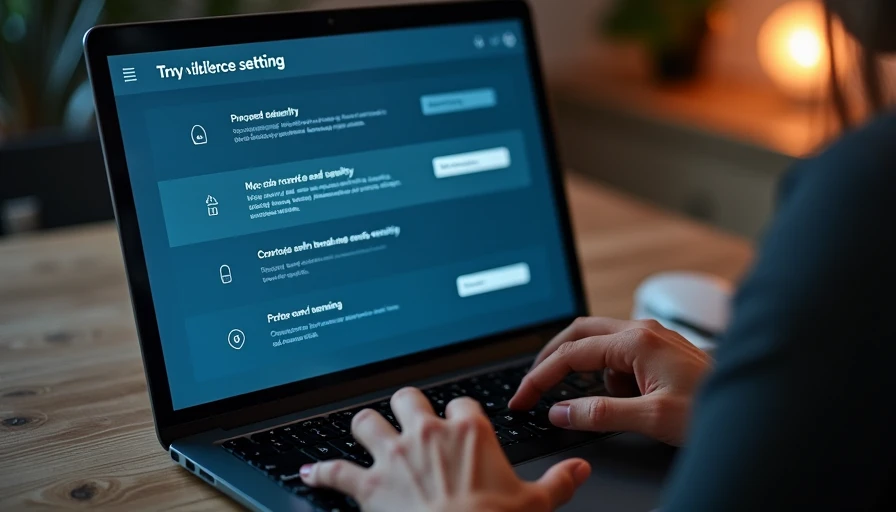
When comparing how to secure wifi settings, encryption is a key checkpoint. In the wireless security menu, choose WPA3-Personal if every important device supports it. WPA2-Personal with AES is a reasonable fallback for older phones, printers, and appliances. Avoid WEP, WPA, and mixed options that include outdated TKIP protection. Those settings are obsolete and provide weaker defenses.
Your network password should be unique and difficult to guess. A memorable phrase of four or more unrelated words can work well, such as a private sentence that does not contain your address, children’s names, pet names, or birth years. Another option is a randomly generated password of at least 16 characters. Do not use a password printed on the router if you have already shared it widely.
Changing the network name, or SSID, is also useful. Remove personal details such as your last name, apartment number, or street address. A neutral name does not make the network invisible, but it reveals less information to people nearby. Hiding the SSID is not a substitute for encryption because determined devices can still discover a hidden network.
Update the router and turn off risky convenience features
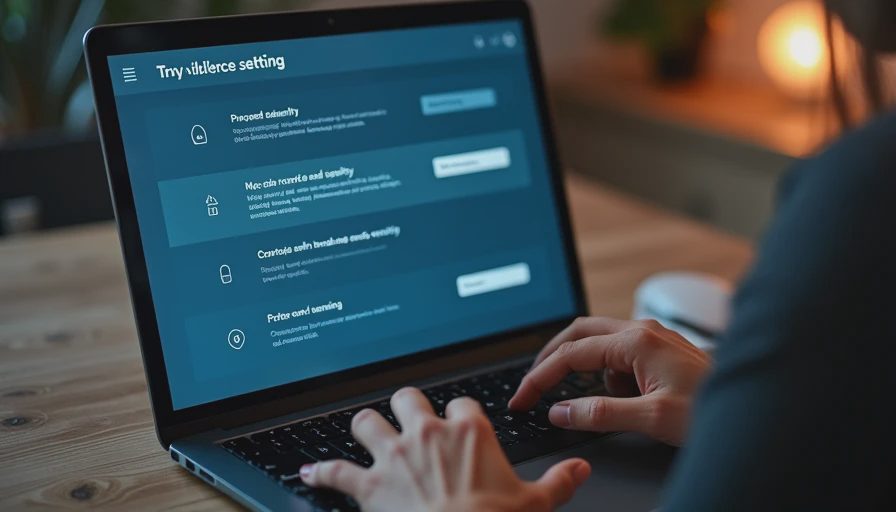
Router firmware updates can fix security flaws, improve stability, and add support for newer protections. Check the manufacturer's app or support page for an automatic update option. Many newer models can install updates automatically, which is preferable for households that do not want another monthly technology task. If your router is no longer supported, replacement is often more sensible than relying on old software.
As part of learning how to secure wifi, review remote administration. This feature lets someone manage the router from outside your home, but most households do not need it. Turn it off unless you have a specific reason to use it and understand the associated risk. Also disable WPS if your router lets you. WPS was designed for convenience, but its setup methods can weaken the network when left enabled unnecessarily.
Look for UPnP, or Universal Plug and Play. It allows devices to open ports automatically, which can help some games and media systems work. However, it also gives connected devices more control over network traffic. If you do not need UPnP, disabling it is a sensible privacy and security choice. You can turn it back on if a trusted device genuinely requires it.
Create a guest network for visitors and smart devices
A guest network is not just for friends who need the Wi-Fi password. It can separate visitors and many smart-home devices from your main computers. Create a guest network with its own name and password, then enable the option that prevents guests from accessing local network devices. The exact wording varies by router, so read the setting carefully.
Use this network for a streaming stick, smart bulb, inexpensive camera, or appliance that receives infrequent security updates. Segmentation does not make an untrustworthy device harmless, but it limits what that device can reach if its software has a problem. Keep work laptops, personal phones, backup drives, and printers on the main network when they need to communicate with one another.
When a visitor leaves, you do not necessarily need to change the guest password immediately. Change it if the password has been shared broadly, posted in a public location, or used by people you no longer trust. A separate guest credential also means you will not have to reconnect every family device after updating the visitor password.
Check every connected device, not just the router
A secure router cannot compensate for an abandoned device with a weak password. Review the connected-device list in your router app once a month. You should recognize the phone, tablet, computer, television, console, printer, and other equipment shown there. If you see an unfamiliar item, pause before deleting it; it could be a family member's device with a generic name. Disconnect it temporarily and identify it through the hardware address or by asking household members.
For each smart device, install available firmware updates, replace default passwords, and remove services you do not use. A camera that no longer receives updates deserves special caution, particularly if it points into bedrooms or living areas. Disable microphone, location, or cloud-sharing features that are unnecessary for the device's purpose.
This is also where how to secure wifi becomes a household habit rather than a one-time project. When buying a new camera or smart speaker, check whether the manufacturer still provides updates and whether the device supports a separate account password. Cheap hardware can become expensive if it cannot be maintained.
Protect the people using the network
Network security is only part of staying safe online. Keep operating systems, browsers, antivirus tools, and mobile apps updated because attackers often use old weaknesses. Use screen locks on phones and laptops, and turn on multifactor authentication for email, banking, shopping, and social accounts. These protections still matter if someone connects to a public hotspot or uses cellular data.
Teach household members to question unexpected router messages, fake security alerts, and popups asking them to install a “Wi-Fi cleaner.” Legitimate router updates should come through the manufacturer's app, known support website, or router interface, not a random advertisement. Trust matters before the click.
If you work remotely, use your employer's approved security tools and avoid sharing work files through unknown devices. A virtual private network can protect traffic on some untrusted networks, but it does not repair a weak home password or stop phishing. Start with the basic router controls first.
A practical 15-minute security check
Begin by writing down the router brand and model, then confirm that you can access its official settings page. Change the administrator password, select WPA3 or WPA2-AES, and create a unique Wi-Fi password. Next, review firmware updates, disable remote administration, and turn off WPS unless you have a clear need for it.
After that, create a guest network and place visitors and suitable smart devices there. Review the connected-device list and remove equipment you no longer own. Finally, update your phone, computer, and router app, then store the new credentials in a password manager rather than on a sticky note near the router.
Knowing how to secure wifi does not require perfect technical knowledge. It requires a few clear choices repeated over time: modern encryption, unique passwords, current firmware, limited access, and an occasional device review. Safe enough starts with clear choices, so begin with the router setting that has been ignored longest and work through the rest today.