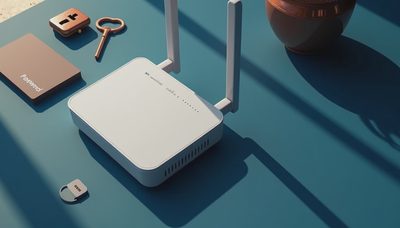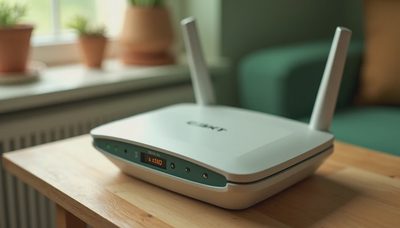
If a phone, laptop, printer, or smart TV asks what a security key on wifi is, it is usually asking for the password that protects your wireless network. You might also see this credential called a Wi-Fi password, network security key, WPA key, WPA2 key, or WPA3 password. These terms can look technical, but the basic idea is simple: the key lets an approved device join your home network.
This is different from a physical security key used for two-factor authentication on an online account. A Wi-Fi security key protects your router connection, while a hardware security key protects an account such as Google, Microsoft, or Facebook. Knowing the difference helps you avoid entering a password in the wrong place or responding to a fake support message.
What a security key on wifi actually does
Your router creates a private wireless network, often identified by a name called an SSID. The security key encrypts the connection between your devices and the router. When you type the correct key, the router confirms that the device is allowed to connect and exchange data over the network.
Modern home routers commonly use WPA2-Personal or WPA3-Personal security. WPA3 is the newer standard and offers stronger protection when both the router and device support it. WPA2 is still widely used and is generally safer than older options such as WEP. If your router offers WPA3, use it unless an older device in your home requires a compatible mixed setting.
The key does not unlock every website or online account. It only grants access to the local wireless network. Someone who knows it could potentially connect nearby, use your internet service, and interact with devices that are visible on the network. That is why a long, unique password matters even in a small apartment or suburban home.

Where to find the Wi-Fi security key
The fastest place to look is the label on the router. Many internet providers print the default network name and password on the bottom, back, or side of the equipment. Look for labels such as Wi-Fi Password, Wireless Key, Network Key, WPA Key, or Password. Enter the characters exactly, including capital letters, numbers, and symbols.
If you changed the password, the printed label may no longer work. You can usually view or change the current key through the router app or administration page. Providers such as Xfinity, Spectrum, AT&T, and Verizon commonly offer an account or mobile app with Wi-Fi settings. The exact menus vary, but they normally appear under Network, Wi-Fi, Wireless, or Security.
A device that is already connected can sometimes display the saved password. On a recent Android phone, open the Wi-Fi network details and look for a share or QR-code option. On an iPhone, open Settings, Wi-Fi, select the network, and authenticate to reveal the password on supported iOS versions. Windows and macOS also provide ways to view saved network credentials, although administrator approval may be required.
What to do when the key is rejected
Start by checking for simple typing errors. A lowercase letter and uppercase letter are different, and a zero can look like the letter O. If you copied the key from a note, remove any extra space at the beginning or end. Also confirm that you are joining your own network rather than a similarly named guest network or a neighbor’s signal.
Restarting the router and the device can clear a temporary connection problem, but it will not correct a wrong password. If several household devices suddenly stop connecting after a router change, the network name or key may have been reset. Check the provider app or router label rather than guessing repeatedly.
If the key still fails, sign in to the router’s settings and create a new one. Use at least 12 characters, and consider a memorable phrase with spaces or punctuation if the router accepts them. Avoid an address, phone number, family name, pet name, or a password reused for email. After changing it, reconnect trusted devices and remove unfamiliar devices from the router’s connected-device list.
How to choose a safer network password
A strong Wi-Fi key should be difficult for a stranger to guess but manageable for people in your household to enter. A phrase such as Maple-Train-Window-27 is easier to type than a short string of random characters while still being much stronger than a simple name and birth year. Do not reuse the same phrase for banking, shopping, email, or streaming accounts.
Treat the key like a household credential. Send it through a private message instead of posting it in a public group chat. If a visitor needs internet access, use the router’s guest network when available. A guest network separates visitors from many of your primary devices, including printers, cameras, and shared storage. It is a practical way to offer access without giving out the password used by your family’s main network.
Check your router’s security mode while you are changing the key. Choose WPA3-Personal when all important devices support it, or WPA2/WPA3 transitional mode when compatibility requires it. Avoid WEP and open networks. If the router is several years old and only offers outdated protection, replacing it can be more useful than endlessly adjusting settings.

Avoid fake Wi-Fi password requests
Not every prompt asking for a network key is trustworthy. A normal setup screen from your phone, computer, printer, or router app may need the password to connect. A random browser popup claiming that your Wi-Fi is infected, expired, or blocked is a different matter. Close it without calling the displayed number or installing software.
Scammers may imitate an internet provider and ask for remote access, payment, or the wireless password. The key itself is not a bank password, but sharing it can give an unwanted person access to your network. Never let an unknown caller guide you through router changes. If you need help, open the provider’s official app or type its known website address yourself.
You should also review connected devices occasionally. A router app may show phones, televisions, game consoles, cameras, and unfamiliar entries. An unknown device does not automatically prove an attack because some equipment uses generic names, but it deserves a closer look. Change the key, update the router firmware, and reconnect only devices you recognize if something seems wrong.
A simple home-network safety routine
Once or twice a year, confirm that your router is still receiving firmware updates and that its administrator password is not the factory default. Keep the router in a central, reasonably secure location rather than placing it outside or in an area accessible to visitors. Update phones, computers, smart TVs, and cameras so known security problems are patched.
When someone asks what a security key on wifi is, the practical answer is the password for joining a protected wireless network. Find it on the router or in the official management app, protect it like a household credential, and never enter it into a suspicious popup. Start with the risk you actually have: a strong network key, current router software, and a separate guest network solve common problems without turning home technology into a full-time job. Safe enough starts with clear choices.