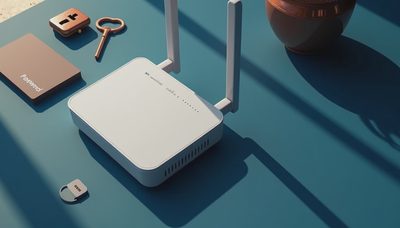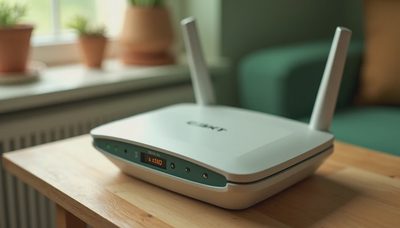
A network security key is the password that lets your phone, laptop, streaming device, or smart home product join a private Wi-Fi network. If you have ever seen a prompt asking for a Wi-Fi password, you have probably used one without knowing the technical name. Understanding this small piece of information can help you connect devices, troubleshoot home internet, and keep unknown users off your network.
The term sounds more complicated than it is. For most households, it means the Wi-Fi password created by your router or internet provider. It is not the password for your email, online banking, or router account, although some people choose to use similar credentials across devices. Start with the risk you actually have: a weak or exposed Wi-Fi password can allow unwanted access to your connection and the devices using it.
What a network security key actually does
Your router broadcasts a wireless network name, usually called an SSID. When you select that name on a device, the router asks for the network security key before allowing the connection. The key works with wireless encryption, such as WPA2 or WPA3, to confirm that the device is authorized.
A secure key does two useful jobs. First, it prevents neighbors, passersby, and nearby visitors from casually using your internet service. Second, it helps protect traffic moving between your devices and the router from simple wireless snooping. It does not make every online activity private, and it does not replace antivirus software, updates, strong account passwords, or multifactor authentication.
A typical key might be a random string printed on a router label, while a custom one could be a phrase such as Cedar-Lake-47! The longer and less predictable it is, the better. Avoid names, birthdays, street addresses, and easy sequences such as 12345678. If your router still uses its original short password, changing it is a sensible improvement.

Where to find your Wi-Fi password
The fastest place to look is the router itself. Check the bottom or back for labels marked Wi-Fi password, wireless key, WPA key, or network security key. Some internet providers print a default network name and password on a card supplied with the equipment. Do not confuse the Wi-Fi key with the administrator password used to change router settings.
If you already have a connected Windows computer, open Settings, select Network & internet, then Wi-Fi and the connected network properties. Depending on your Windows version, you can view the saved wireless password through the security settings. On a Mac, open System Settings and look under Wi-Fi details, or use the Passwords area to view saved network credentials after confirming your identity.
On an iPhone or iPad running a current version of iOS, open Settings, choose Wi-Fi, tap the information button beside the connected network, and tap the password field. Face ID, Touch ID, or the device passcode may be required. Android menus differ by manufacturer, but many current phones show a Share or QR code option inside Wi-Fi settings. The phone may display the password after you unlock it.
Your provider's app can also show or change the Wi-Fi credentials. Xfinity, Spectrum, AT&T, Verizon, and other providers use different menus, so look for Home Wi-Fi, Gateway, or Network settings rather than searching randomly through account pages.
How to fix a rejected network security key
When a device says the password is incorrect, begin with the simple causes. Check capitalization, spaces, hyphens, and characters that look alike, such as the number one and lowercase letter l. If you copied the key from a text message or password manager, remove any extra space at the beginning or end.
Next, confirm that you selected the right network name. A nearby apartment, guest network, extender, or mesh access point can have a similar SSID. If the router password was recently changed, forget the saved network on the device and reconnect using the current key. Restarting the router and the device can clear a temporary connection error.
If only one device fails, update its operating system and wireless driver. Older products sometimes struggle with WPA3-only settings, while newer routers can often use a compatibility mode that supports WPA2 and WPA3. Avoid lowering security permanently just to connect an outdated gadget; replace unsupported equipment when practical.
If every device stops connecting after a password change, log in to the router or provider app and verify the current credentials. A factory reset should be a last resort because it can erase custom settings, parental controls, port rules, and the network name.

How to make your home Wi-Fi safer
Change the default network security key if it is printed on the router and has never been customized. Use at least 14 characters, with a mixture of words and numbers that does not identify your household. A memorable phrase is easier to manage than a short complicated string that everyone writes on a sticky note.
Use WPA3 when all important devices support it. If you have older smart bulbs, printers, cameras, or game consoles, WPA2/WPA3 mixed mode is often a practical compromise. Never choose WEP, an obsolete wireless standard that offers poor protection. Keep the router firmware updated, enable automatic updates when available, and replace equipment that no longer receives security support.
Create a separate guest network for visitors and devices that do not need access to your main computers. A guest network can also be useful for inexpensive smart-home products when you are unsure about their update history. Turn off remote administration unless you have a specific reason to use it, and change the router admin password separately from the Wi-Fi password.
When you should change the key
Change the key after moving into a new home, replacing a roommate, losing a device, or sharing the password with a large group of guests. You should also change it if you notice unfamiliar devices in the router's connected-device list, receive alerts about unusual router activity, or believe the password was posted publicly.
Changing it will disconnect every device, so prepare a short reconnection plan. Write down the new credentials in a password manager, update phones and computers first, then reconnect printers, televisions, cameras, speakers, thermostats, and other smart products. For a large household, use the router's QR sharing feature where available instead of reading a complicated key aloud.
Do not reuse the Wi-Fi password for email, banking, shopping, or social media. If someone learns the network security key, that does not need to expose your other accounts. Separate credentials limit the damage from one mistake.
A simple household security check
Take five minutes to review the network name, encryption setting, connected-device list, router firmware, and guest network. Remove devices you no longer own and investigate names you do not recognize before deleting them. Some entries are harmless, such as a phone appearing with a generic manufacturer name, but an unfamiliar computer or camera deserves attention.
Then test your setup from a normal user perspective. Connect a phone, confirm that the key works, and open the router app to see whether the device appears. Store the current password securely rather than leaving it beside the router. If family members need access, share it through a trusted password manager or your device's built-in Wi-Fi sharing feature.
Safe enough starts with clear choices. A network security key is only one part of home protection, but using a strong one, keeping it private, and pairing it with updated router settings removes an easy source of trouble. Trust matters before the click, and it starts with knowing exactly who can join your network.