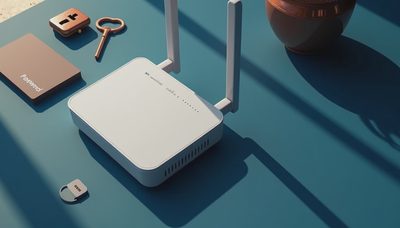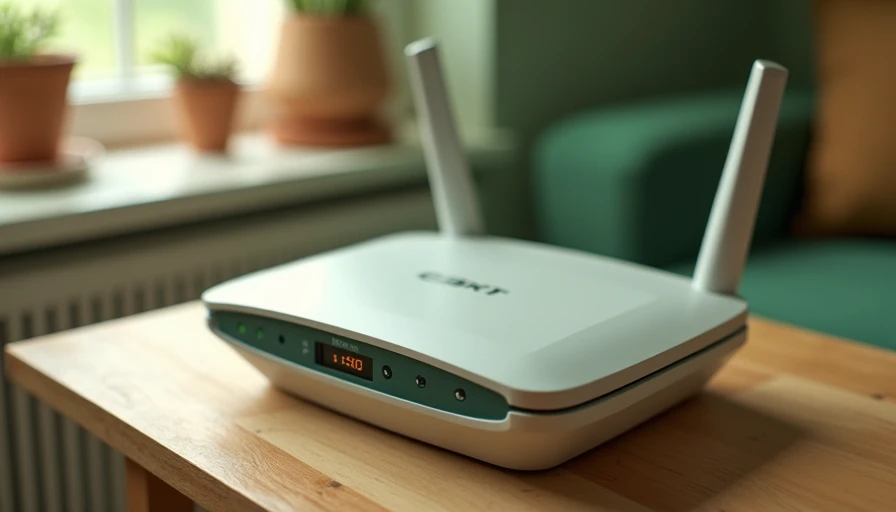
If you have ever connected a phone, laptop, smart TV, or printer to home Wi-Fi, you have probably wondered, what is a wpa2 password? In plain English, it is the password that protects a wireless network using WPA2 security. It helps prevent nearby strangers from joining your network and makes it harder for people to intercept the information sent between your devices and router.
WPA2 stands for Wi-Fi Protected Access 2. It became one of the most widely used Wi-Fi security standards for homes, apartments, and small offices. Although newer routers can support WPA3, many networks still use WPA2 because it works with a broad range of phones, computers, game consoles, cameras, and older smart-home devices.
What a WPA2 password actually does
A WPA2 password is not usually a separate account password created by your internet provider. It is the wireless network key, sometimes called the Wi-Fi password, security key, or network password. When you select your home network from a device, the password confirms that you are allowed to connect.
The router then uses that password to help encrypt traffic moving across the wireless connection. Encryption scrambles information so that someone sitting outside your home cannot easily read ordinary network traffic. It is not a guarantee that every online account is safe, but it is an important first layer of protection.
For example, a weak password such as password123 or your street name can be easier to guess than a longer phrase. A strong WPA2 password should be unique to the router, difficult to predict, and long enough to resist common guessing attempts. A memorable phrase with several unrelated words is often easier to manage than a short collection of symbols.
Where to find your WPA2 password
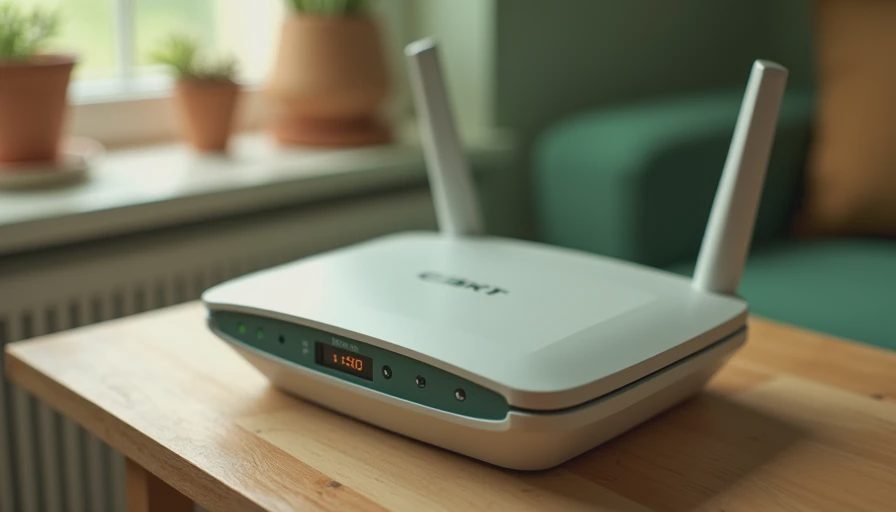
If you are asking what is a wpa2 password because a new device will not connect, start with the router. Many internet service provider routers have a label on the bottom, back, or side. Look for terms such as Wi-Fi password, wireless key, WPA key, or network security key. The label may also show the default network name, known as the SSID.
If someone changed the original password, the label may no longer be accurate. In that case, check the provider's mobile app, account dashboard, or setup paperwork. Some routers display the current Wi-Fi settings after you sign in to an administration page. The address and login process differ by manufacturer, so use the instructions for your exact model rather than guessing.
A connected Windows computer can sometimes show the saved Wi-Fi password through its network settings, provided you have permission to view it. On an iPhone or iPad running a recent version of iOS, open Wi-Fi settings, select the connected network, and authenticate to reveal the password. Android menus vary by device, but many recent phones offer a share or QR-code option for the current network.
Do not copy the password from a random internet forum or a suspicious support page. Your router label, provider account, or official manufacturer instructions are safer sources. Trust matters before the click, especially when a pop-up claims that your Wi-Fi has been hacked and asks for payment.
How to change a WPA2 password
Changing the password is a sensible step if many guests have received it, a former roommate still knows it, or you notice unfamiliar devices in the router's device list. First, connect to the router through its official app or administration page. Find a menu named Wireless, Wi-Fi, Security, or Network Settings. Select WPA2-Personal, WPA2-PSK, or a similar home-use option if the router gives you several choices.
Enter a new password and save the setting. Your phones, computers, streaming devices, and smart-home products will disconnect. Reconnect each device using the new key. Before changing anything, write the new password in a secure password manager or another private location. Avoid posting it in a group chat where it can be forwarded indefinitely.
Choose a password of at least 12 characters when your router allows it. A phrase such as RiverLampCedar7Window is stronger than a familiar name, birthday, or phone number, although you should create your own phrase rather than copy this example. Do not reuse your email, banking, or primary account password for Wi-Fi.
WPA2 compared with WPA3
WPA2 remains useful, but WPA3 is the newer security standard. WPA3 can provide stronger protections against certain password-guessing attacks and is designed for current devices. If your router supports WPA3 and all important devices can connect normally, using WPA3-Personal is a reasonable upgrade.
Some routers offer a transition mode that supports WPA2 and WPA3 at the same time. This can help older devices connect while newer equipment uses the newer standard. Compatibility matters: an older printer or smart plug may fail to join a WPA3-only network. Start with the risk you actually have rather than replacing working equipment just because a newer label exists.
If your router only offers WPA or WEP, it is probably outdated. WEP is especially old and should not be used for a modern home network. Replacing an aging router can improve security, coverage, and software-update support, often for roughly $70 to $250 depending on the size of your home and the features you need.

Simple ways to protect your home Wi-Fi
Knowing what is a wpa2 password is useful, but the surrounding router settings matter too. Change the router's administrator password if it still uses a default login. This password controls settings and is different from the Wi-Fi password. Keep router firmware updated, either through automatic updates or the manufacturer's official app.
Review the connected-device list every few months. You may recognize phones, laptops, speakers, cameras, and streaming boxes, but an unfamiliar name deserves a closer look. Disconnect devices you no longer use and change the Wi-Fi password if you believe someone unauthorized has access.
Create a guest network for visitors and devices that do not need access to your main network. A guest network can reduce unnecessary exposure and lets you share internet access without revealing the password used by family devices. Smart-home products are another good reason to separate less-trusted equipment when your router supports that feature.
Do not assume a Wi-Fi password protects you from phishing, malware, or unsafe websites. A secure router cannot stop someone from entering a fake delivery message password into a fraudulent website. Keep your phone, computer, browser, and router updated, and use multifactor authentication on email, shopping, and financial accounts.
A practical WPA2 password checklist
When a device asks for the network key, confirm that you are selecting your own SSID rather than a similarly named network nearby. Enter the password exactly, including capital letters, numbers, and punctuation. If the connection fails, move closer to the router, restart the device, and verify the current password instead of repeatedly guessing.
For a safer setup, use a unique password of at least 12 characters, change the router administrator login, enable automatic updates, and review connected devices. Replace old security standards when practical, but do not disable security simply to make an old gadget connect. A device that only works with an obsolete standard may need replacement.
So, what is a wpa2 password? It is the key that authenticates devices to a WPA2-protected wireless network and helps encrypt their Wi-Fi traffic. Find it on the router, provider app, or saved-device settings, then change it when access needs to be limited. Safe enough starts with clear choices: secure the network, update the equipment, and focus your strongest account protections on email, money, and identity.