Learning how to report phishing in outlook gives you a simple way to flag dangerous email without forwarding it to friends, coworkers, or your contacts. Outlook can send suspicious messages to Microsoft for analysis, remove them from your inbox, and help improve filtering for other users. The process takes less than a minute when the message is still unopened.
Phishing emails often imitate banks, delivery companies, Microsoft, payroll departments, schools, and online stores. The sender may ask you to verify a password, pay an invoice, open an attachment, or click a link before an account is closed. A professional logo does not make the message legitimate. Trust matters before the click, especially when the request involves money, passwords, or urgent action.
How to report phishing in Outlook on the web
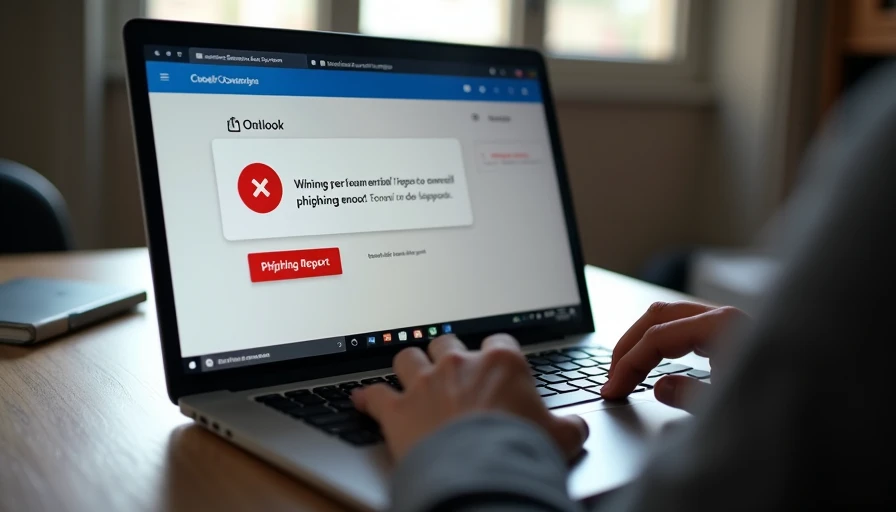
In Outlook on the web, open the suspicious message only if necessary, but do not click its links, download attachments, reply, or enter information. If the message is visible in your inbox, select it and look for the Report button in the toolbar. Choose Report phishing, then confirm the action if Outlook displays a confirmation window. Microsoft generally moves the email out of your inbox and treats it as a reported threat.
The exact button location can change slightly with account type or a redesigned Outlook interface. If you do not see Report phishing, select More actions, often represented by three dots, and look for Report or Security options. You can also use the junk or spam reporting menu, but the phishing option is more specific when the message is attempting to steal information.
After reporting, delete the message from Deleted Items or Trash if Outlook has not already handled it. Do not keep opening it to study the sender address. If you need evidence for a workplace, bank, or school, take a screenshot without opening links or attachments, then follow that organization’s reporting procedure.
How to report phishing in Outlook desktop
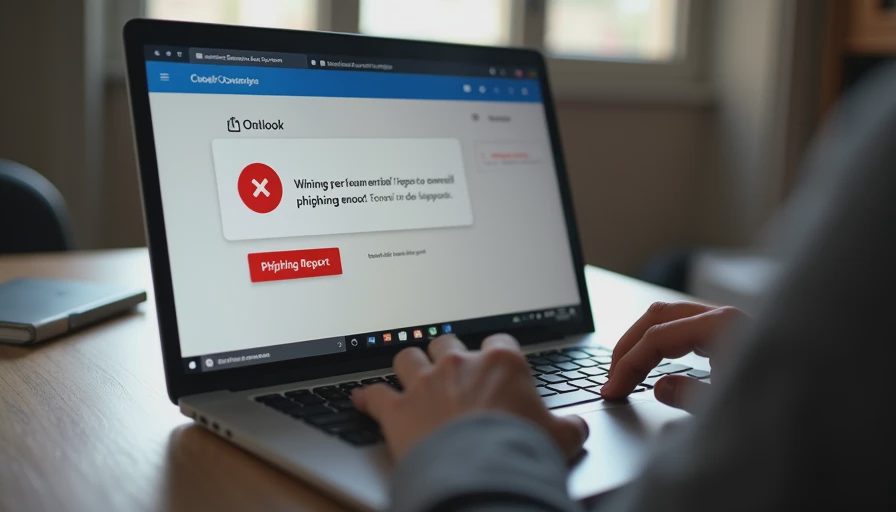
The desktop Outlook application uses a similar process. Select the suspicious email in your message list, then choose Report Message from the Home ribbon if that add-in is available. Select Phishing and follow the confirmation prompts. Some Microsoft 365 organizations provide a dedicated Report Phishing button installed by an administrator. Personal Outlook accounts may instead show the option under the three-dot menu or the Junk menu.
If the message is already open, close it after reporting. Never use the email’s unsubscribe link when the message looks fraudulent. Legitimate newsletters usually provide a safe unsubscribe option, but a scam link can confirm that your address is active or take you to a fake login page.
If Outlook does not offer a phishing option, mark the message as junk, delete it, and report it through Microsoft’s official reporting channels or your organization’s security team. Do not email the suspicious message to a random address found online. Attackers sometimes create fake security addresses that collect forwarded messages or personal details.
What to do if you clicked the link
Knowing how to report phishing in Outlook is important, but reporting is only one part of cleanup if you clicked. First, stop interacting with the page. Close the browser tab, disconnect from the network if a file started downloading, and do not call a phone number displayed in a pop-up. A message claiming that your computer is infected may be trying to sell fake support.
If you entered a password, change it immediately from the real website or official mobile app. Do not use the link in the email to reach the account. Use a new, unique password and turn on multifactor authentication when available. If you reused that password elsewhere, update those accounts as well, beginning with email, banking, shopping, and payment services.
If you entered debit card, credit card, or bank information, contact the financial institution using the number on your card or its official website. Ask what monitoring, replacement, or transaction review is appropriate. Check recent account activity and watch for unusual password-reset messages. If malware may have been installed, run a trusted security scan and update the operating system and browser.
How to spot the next suspicious message
Phishing messages often combine a familiar brand with an unusual request. Look for pressure to act immediately, threats about account closure, unexpected invoices, mismatched sender domains, and links that do not match the organization named in the message. A shipping notice that says “delivery failed” may be fake if you are not expecting a package. A payroll message that requests a password through an unfamiliar sign-in page deserves the same caution.
On a computer, hover over a link without clicking to preview its destination. On a phone, press and hold carefully, but do not open it. Be cautious with shortened URLs, misspelled domains, extra words, and addresses that replace a letter with a number. Remember that a compromised legitimate account can send convincing messages, so a familiar sender alone is not proof.
When in doubt, contact the organization separately. Type its web address yourself, use a saved bookmark, or call a number printed on a statement or card. Start with the risk you actually have: urgent requests, login prompts, unexpected attachments, and payment changes deserve a pause.
Protect your Outlook account after reporting
After you report a scam, review account security rather than assuming the problem is finished. Visit your Microsoft account directly and check recent sign-in activity, recovery email addresses, phone numbers, connected devices, and forwarding rules. An attacker who gained access may create a forwarding rule that quietly sends future messages elsewhere.
Remove unfamiliar apps or connected services and sign out of sessions you do not recognize. Confirm that multifactor authentication is active and that your recovery methods are current. If you use Outlook through an employer or school, notify the IT or security team even after using the report button. They may need to search for similar messages, reset credentials, or protect other accounts.
Households can also reduce risk by using automatic updates, a password manager, and reputable antivirus protection. Antivirus software will not decide whether every message is trustworthy, but it can help detect malicious downloads and suspicious websites. Teach children and older relatives one rule: never use an email link to solve a sudden account problem without verifying the request another way.
A quick reporting checklist
When you need to know how to report phishing in Outlook, use this short sequence:
- Stop and avoid links, attachments, replies, and phone numbers in the message.
- Select the email without interacting with its contents.
- Choose Report, Report Message, or the three-dot menu, then select Phishing.
- Confirm that Outlook moved or marked the message.
- Delete any remaining copy from Deleted Items or Trash.
- Change passwords and contact your financial institution if you shared information.
- Review Microsoft account activity and tell your workplace or school when relevant.
The goal is not to inspect every technical detail. It is to prevent the next click, limit exposure, and give the email provider useful information. Safe enough starts with clear choices: report the message, verify urgent requests independently, and secure any account that may have been exposed.