If you have searched for what is a phishing email example, you probably want to know whether a message in your inbox is dangerous or merely annoying. Phishing emails are fake messages designed to trick you into clicking a link, opening an attachment, sharing a password, or sending money. They often imitate banks, delivery companies, streaming services, employers, schools, and government agencies. The good news is that most scams leave clues once you know where to look.
What a phishing email is trying to do
A phishing email uses a believable story to create a quick reaction. The sender might claim that your package cannot be delivered, your payment failed, your account will be closed, or an unusual login needs immediate confirmation. The goal is not always to steal money directly. A link may lead to a fake sign-in page that captures your email address and password. An attachment may install malware or ask you to enable unsafe content.
A useful way to understand what is a phishing email example is to separate the message into three parts: the disguise, the pressure, and the request. The disguise could be a familiar logo or a company name. The pressure could be an urgent deadline. The request might involve a login, payment, download, gift card, or personal detail. When all three appear together, pause before doing anything.
Scammers also use ordinary details to make messages feel personal. They might mention the last four digits of a card, a recent purchase, or the name of a service you use. Those details do not prove the email is genuine. Information from data breaches, public profiles, mailing lists, and previous scams can help criminals build convincing messages.
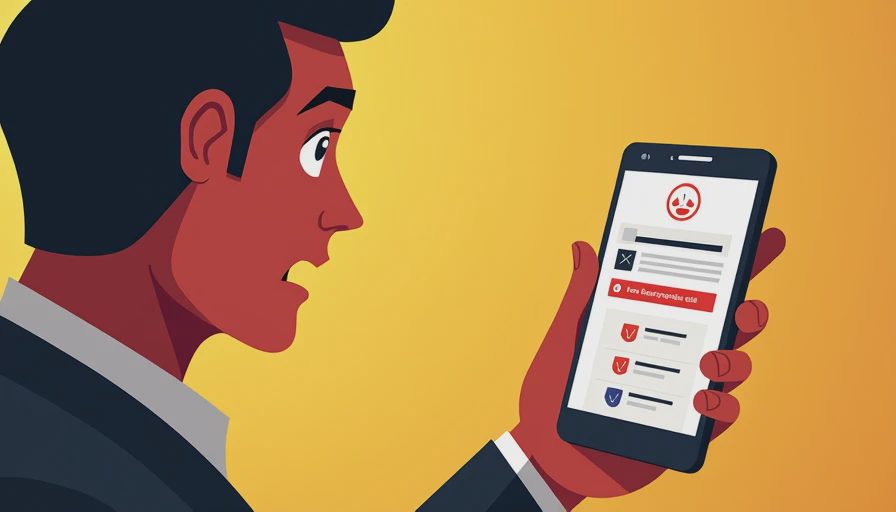
What is a phishing email example in real life?
Here is a realistic example: “Your Netflix payment could not be processed. To avoid interruption, update your billing information within 24 hours.” The message includes a red button labeled “Verify Payment” and a footer that appears to come from Netflix. The link, however, leads to a website with a strange address rather than an official Netflix domain.
Another example might say, “Your Amazon order is on hold because the shipping address is incomplete.” It asks you to open an attached HTML file or enter your card number. A fake Microsoft 365 warning may say that your mailbox is nearly full and require you to sign in immediately. A payroll scam may impersonate a manager and request a direct-deposit change.
These examples are dangerous because the subject line and branding are familiar. The safest response is to avoid the button and open the company’s official app or type its known website address yourself. Check your account there. If there is a genuine problem, it should appear after you sign in through the normal route.
Warning signs hidden in the sender and link
The sender’s display name is easy to fake. An email that says “PayPal Support” may actually come from an unrelated address with random letters, extra words, or a misspelled domain. Look at the complete address, not just the name. Be cautious with lookalike domains such as amaz0n instead of amazon or a company name followed by an unfamiliar extension.
Hover over a link on a computer without clicking it. On a phone, press and hold carefully so the destination preview appears. The destination should make sense for the service being discussed. Shortened links, long strings of random characters, and domains unrelated to the supposed sender deserve extra scrutiny. A secure padlock alone does not prove a site is legitimate; scam websites can use encrypted connections too.
Grammar mistakes can be a clue, but polished writing does not make an email safe. Criminals now use translation tools and writing software. Focus more on the request, the destination, and whether the message creates unnecessary urgency. If you are still asking what is a phishing email example, look for an email that wants you to break your normal security habits.
What to do before clicking anything
Start with the risk you actually have. If the email concerns a bank, credit card, workplace, school, or online store, do not use its embedded link. Open a fresh browser window or the official mobile app. Check recent activity, notifications, and account messages directly. You can also call the number printed on a card or shown on an official website, rather than using contact details inside the suspicious message.
Do not reply to ask whether the email is real. A reply confirms that your address is active and can invite more manipulation. Do not download an attachment simply to see what it contains. If a document is expected, contact the sender through another channel and confirm the file before opening it.
Most email services have a “Report phishing” or “Report spam” option. Use it, then delete the message. Reporting helps providers identify related campaigns and removes the temptation to click later. If the message arrived at work, forward it to your organization’s security or information technology team according to company procedure.
If you already clicked a phishing link
A click does not automatically mean your device or account has been compromised. Close the page, avoid entering information, and run a security scan using reputable antivirus software. Update your browser, operating system, and security tools. If you downloaded a file, do not open it; delete it after your security software checks the device.
If you entered a password, change it immediately from the real website or app. Change it anywhere else you reused it, because attackers often test stolen credentials on email, banking, shopping, and social accounts. Turn on multifactor authentication, preferably with an authenticator app or passkey when available. Review recent sign-ins, forwarding rules, recovery addresses, and connected applications for changes you did not make.
If you submitted card or bank information, contact the financial institution using its official phone number. Ask about replacing the card, monitoring transactions, or placing an appropriate alert. Move quickly, but do not panic. Clear steps are more useful than trying to investigate the scam yourself.
Building safer email habits at home
Use a password manager to create separate passwords for important accounts. Secure your primary email first because it is often used to reset other accounts. Keep automatic updates enabled, and use antivirus protection on Windows computers and other supported devices. Protection cannot identify every scam, but it can help block malicious downloads and unsafe websites.
For families, make a simple rule: urgent messages involving money, passwords, gift cards, or account closures require a second check. Parents can practice with children by showing how a real company notification is accessed through its app rather than through an email button. Older adults may benefit from larger display settings, a password manager, and a trusted contact who can review unusual requests without taking over their accounts.
The best answer to what is a phishing email example is not a single message. It is any email that uses a convincing identity and a pressured request to move you toward a risky action. Trust matters before the click. Pause, verify through an independent route, and report suspicious messages. Safe enough starts with clear choices.